Run a Local AI Code Assistant on (Almost) Any GPU
Learn how to run a powerful local AI coding assistant on your GPU—whether it's an older AMD, NVIDIA, or a newer RDNA3/4 card. Set up Ollama with Continue in VS Code for private, fast code completions.
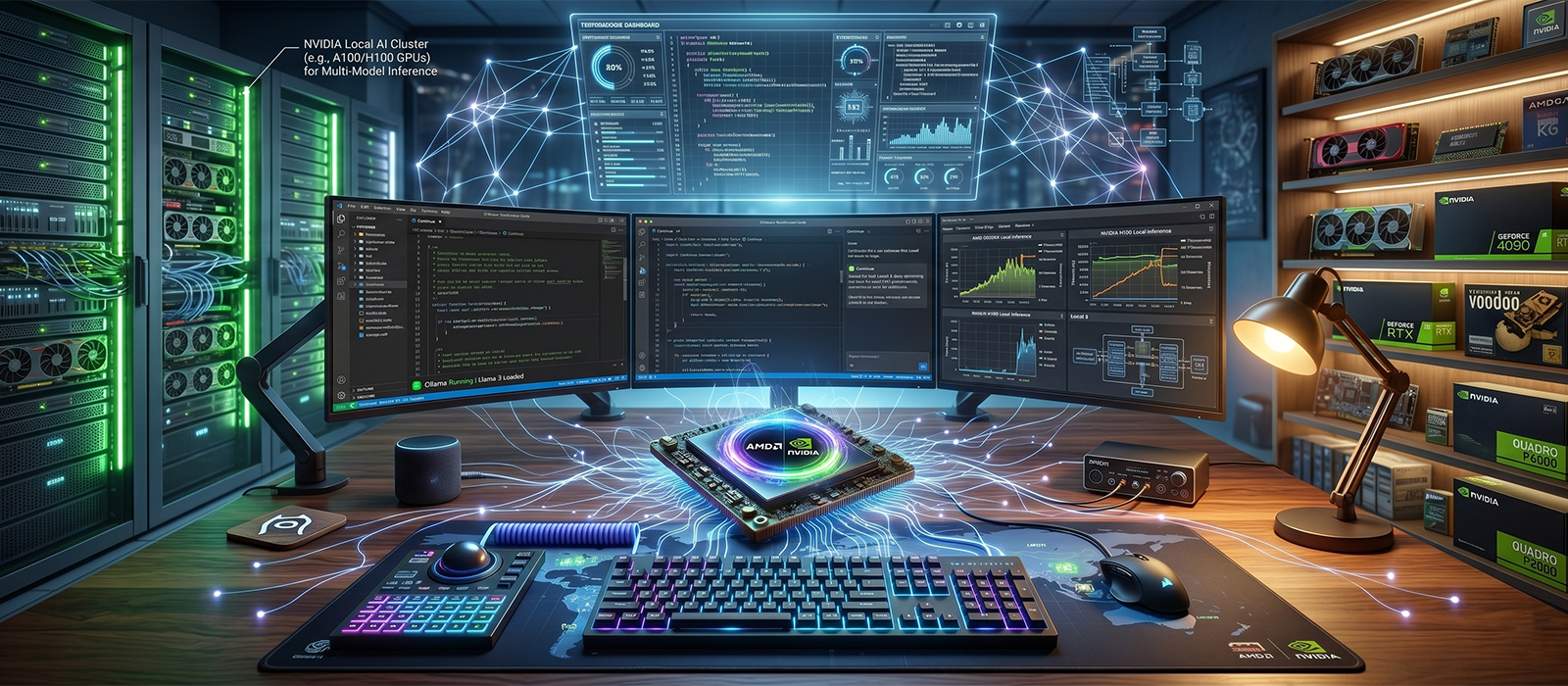
In this guide, I’ll show you how to run a local AI assistant similar to Copilot on your GPU—whether it’s an older AMD card like the RX 6600, an NVIDIA GPU, or a newer RDNA3/4 AMD card. With Ollama and the Continue extension for VS Code, you can get fast, private code completions without sending your code to the cloud. Let’s walk through the setup!
Which GPUs Are Supported?
The beauty of Ollama is that it supports a wide range of GPUs out of the box. If you have an NVIDIA GPU, just install Ollama from the official Ollama page and you’re good to go—no extra steps needed. AMD RDNA3 (7000 series) and RDNA4 (9000 series) GPUs also work with the standard Ollama installation.
Older AMD GPUs (pre-RDNA3) need a bit more love. Cards like the RX 6600, RX 5700, or older aren’t officially supported by Ollama, but with the custom ROCm libraries from the community, they work great. This guide focuses on getting those older AMD cards running, but if you have a newer AMD or NVIDIA card, you can skip the custom library steps and follow the standard installation.
Supported AMD Architectures (Requires Custom ROCm Libraries)
These older AMD GPUs need the extra step of replacing ROCm libraries:
- gfx803: AMD R9 290, AMD R9 Fury
- gfx902: AMD Ryzen 5 2400G
- gfx90c: AMD Instinct MI100
- gfx1010: AMD RX 5700
- gfx1011: AMD Ryzen 9 4900HS
- gfx1012: AMD Ryzen 5 PRO 4650U
- gfx1030: AMD RX 6700
- gfx1031: AMD Radeon Pro 6800M
- gfx1032: AMD RX 6600, RX 6650 XT, RX 6600 XT
- gfx1034: AMD RX 6800
- gfx1035: AMD RX 6700 XT
- gfx1036: AMD RX 6900 XT
Supported AMD RDNA3/RDNA4 GPUs (Standard Ollama Works!)
These work with official Ollama, no custom libs needed:
- gfx1100: AMD RX 7700 XT, RX 7800 XT, RX 7900 XTX (RDNA 3)
- gfx1101: AMD RX 7800 XT (RDNA 3)
- gfx1102: AMD RX 7900 XTX (RDNA 3)
- gfx1103: AMD 780M APU (RDNA 3)
- gfx1150: AMD 880M APU (RDNA 3.5)
- gfx1151: AMD 870M APU (RDNA 3.5)
- gfx1152: AMD 860M APU (RDNA 3.5)
- gfx1153: AMD 850M APU (RDNA 3.5)
- gfx1200: AMD RX 9070 (RDNA 4)
- gfx1201: AMD RX 9070 XT (RDNA 4)
NVIDIA GPUs (Just Works)
- All NVIDIA GPUs with CUDA support work with the standard Ollama installation. Download from ollama.com/download and install CUDA if prompted.
If your GPU is one of the older AMD models listed above, follow the steps below. Otherwise, jump straight to installing Ollama!
Step 1: Install Ollama
First, download and install Ollama from the official website. It supports Windows, macOS, and Linux.
For NVIDIA GPUs: Ollama will automatically use CUDA. No extra steps needed.
For AMD GPUs: Ollama will use ROCm/HIP. If you have a newer AMD GPU (RDNA3 or newer), you’re done—Ollama just works. If you have an older GPU (like the RX 6600), continue to Step 2.
For Mac: Ollama uses Metal on Apple Silicon—no setup needed.
Step 2: GPU-Specific Setup (Older AMD GPUs Only)
Skip this step if you have an NVIDIA, newer AMD (RDNA3+), or Mac. Ollama already works for you.
Older AMD GPUs (gfx803–gfx1036) need custom ROCm libraries since they’re not in Ollama’s official support yet.
- Visit the ROCmLibs releases page and download the correct file for your GPU:
- gfx1010 / gfx1012:
rocm.gfx1010-xnack-gfx1012-xnack-.for.hip6.4.2.7z - gfx1030:
rocm.gfx1030.for.hip.sdk.6.4.2.7z - gfx1031:
rocm.gfx1031.for.hip.6.4.2.7z - gfx1032:
rocm.gfx1032.for.hip.6.4.2.navi21.logic.7z - gfx1034 / gfx1035 / gfx1036:
rocm.gfx1034-gfx1035-gfx1036.for.hip.sdk.6.4.2.7z
- gfx1010 / gfx1012:
- Extract the 7z archive—you’ll get
rocblas.dlland arocblas/library/folder.
Now replace Ollama’s ROCm files:
- Navigate to
%LocalAppData%\Programs\Ollama\lib\ollama\rocm. - Delete the existing
rocblasfolder. - Copy the extracted
rocblasfolder into this location.
If you also have ROCm installed system-wide, also copy rocblas.dll to %ProgramFiles%\AMD\ROCm\6.4\bin.
Step 3: Verify GPU Utilization
After setup, it’s time to verify your GPU is being used correctly.
- Start Ollama (e.g., run
ollama run llama3.1in terminal). - Right-click the Ollama icon in the system tray and choose ‘View Logs’.
- Open
server.logand look for a line like:
level=INFO source=types.go:107 msg="inference compute" id=0 library=rocm variant="" compute=gfx1032 driver=6.4 name="AMD Radeon RX 6600" total="8.0 GiB" available="7.8 GiB"For NVIDIA, it will say library=cuda. If you see your GPU listed, you’re good to go!
Step 4: Integrate Ollama with VS Code Using Continue
To take full advantage of Ollama’s capabilities, you can integrate it with VS Code by using the Continue extension. Continue allows you to run AI-powered code suggestions, acting as a “Copilot killer,” without the need for cloud-based solutions.
- Install the Continue extension from the Visual Studio Marketplace.
- Open the extension in VS Code and follow the setup wizard.
When prompted to install models, I recommend trying Next-Edit models such as Sweep or the recommended model, which provides a good balance between speed and accuracy for local code generation tasks.
How to Use Continue in VS Code
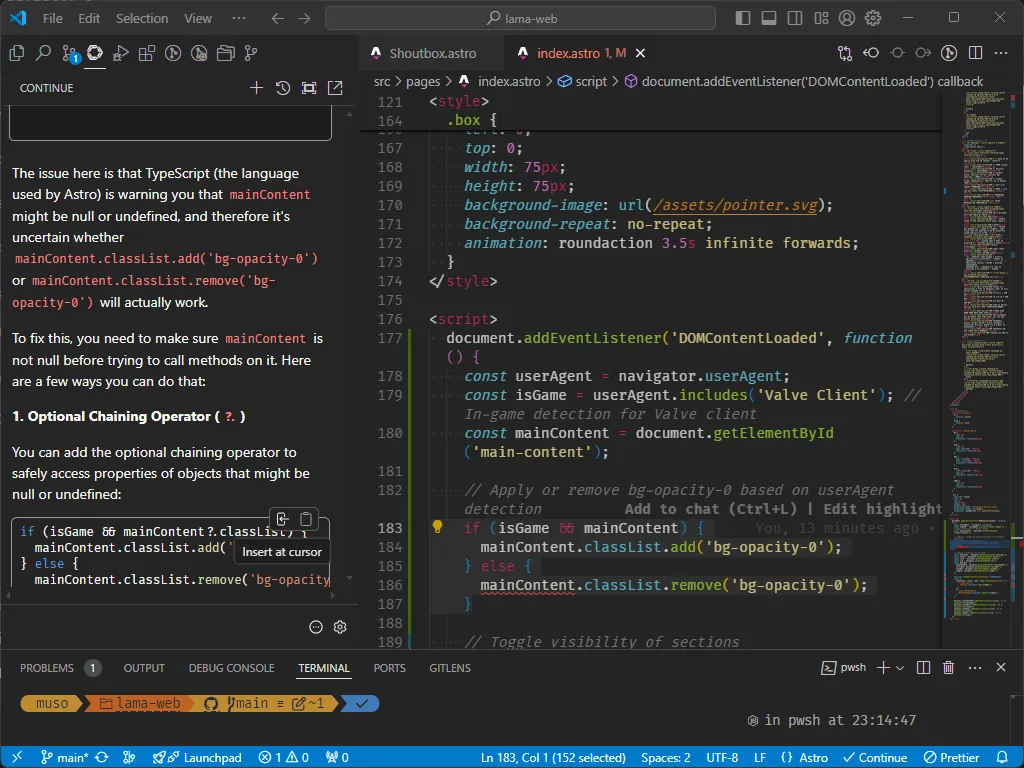
Once installed, Continue adds an AI assistant to your development environment, similar to GitHub Copilot. Here’s how you can start using it:
- Open any project in VS Code.
- Start typing your code or comments, and Continue will automatically suggest completions or improvements based on the context.
- You can also trigger the AI suggestions manually by pressing
Ctrl+Enter(orCmd+Enteron macOS).
With this setup, you’ll have a local AI code assistant running directly on your machine—no cloud needed.
Conclusion
With these steps, you’ve successfully set up a local alternative to Copilot using Ollama and Continue. Whether you’re on an older AMD GPU, a newer RDNA3/4 card, an NVIDIA GPU, or even a Mac with Apple Silicon—there’s a path for you. This solution gives you powerful, private, and efficient AI code completions directly inside your editor.
Enjoy building and coding with your new AI assistant!
Want to integrate AI into your workflow? I help developers and businesses set up local AI tools, automate workflows, and build custom AI solutions. Start a project — tell me about your idea.